
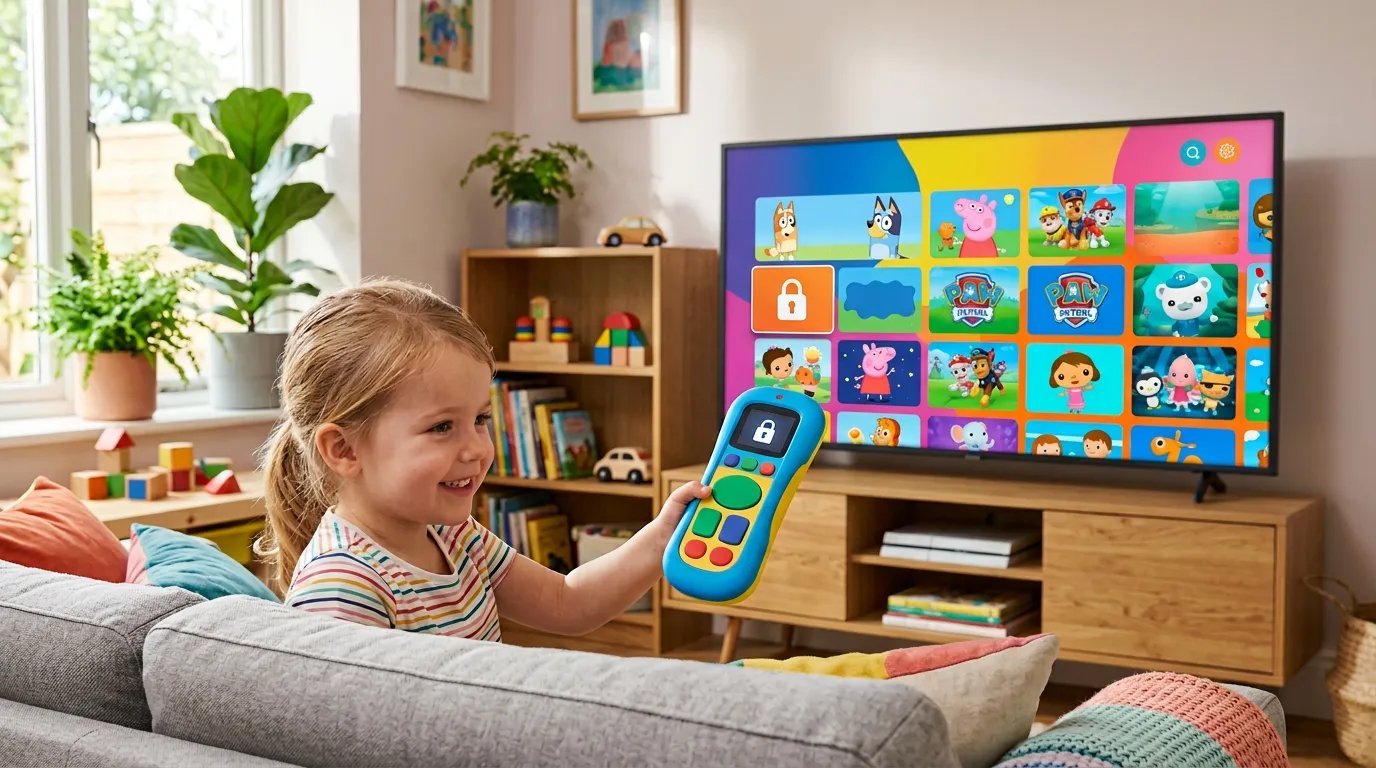
Learning how to set up parental controls on a smart TV is one of those jobs that feels daunting until you actually sit down and do it — then you wonder why you put it off for so long. The living room TV is often the least supervised screen in the house: it’s big, it’s communal, and kids are remarkably adept at finding content you didn’t know existed. The good news is that every major smart TV platform has solid parental controls built in. They’re just buried three menus deep where nobody looks.
I’ve set these up on Samsung, LG, Fire TV, and Android TVs for various family members over the years, and the process is broadly similar everywhere: change the default PIN, set an age-rating limit, lock the apps you don’t want touched. Here’s the practical walkthrough for each platform.
How do I set up parental controls on a smart TV? Brand-by-brand
Samsung (Tizen)
Go to Settings → General → System Manager → Change PIN. Do this first — the default is 0000, and every child over the age of six seems to know it. Then head to Broadcasting → Programme Rating Lock and set the maximum age rating appropriate for your youngest viewer. To lock individual apps (YouTube, web browser, app store), highlight the app on the home screen, press and hold select, and choose Lock. Locked apps demand the PIN every time they’re opened.
LG (webOS)
Navigate to Settings → All Settings → General → Safety. Turn Safety on, set your PIN (defaults are 0000 or 1234 — change it immediately), then configure Programme Locks by age rating and Application Locks for specific apps. LG also lets you block individual HDMI inputs, which is genuinely useful if there’s a games console or streaming stick you want off-limits at certain times of day.
Amazon Fire TV (built into many TVs from JVC, Toshiba, and others)
Honestly the best parental controls of the lot. Go to Settings → Preferences → Parental Controls, switch them on, and set a PIN. You can then restrict viewing by age rating, block all purchases, and — the killer feature — set up a dedicated Kids Profile: a completely separate, locked-down environment with only age-appropriate content. If parental control is a priority in your next TV purchase, Fire TV’s implementation is a genuine selling point.
Android TV / Google TV (Sony, Philips, TCL, and others)
Google’s approach is profile-based. Create a Kids Profile under Settings → Accounts & Sign-in, which gives children access only to approved, age-appropriate apps. The real power comes from managing it via the Family Link app on your phone: screen time limits, bedtimes, activity reports, and remote app approval. It’s slightly fiddly to configure initially but very comprehensive once running.
Roku TVs and sticks
Roku is the weakest of the major platforms for parental control, frankly. You can set a PIN for purchases and channel additions (Settings → System → Parental controls), but there’s no proper age-rating lock across apps. If you use Roku with young kids, you’ll lean more heavily on the individual apps’ own parental settings below.
Don’t forget: lock down the apps themselves
TV-level controls are only half the job. Each streaming app maintains its own parental settings, and these are what actually filter the content your kids see:
- Netflix: Create a dedicated Kids profile with an appropriate maturity rating, and add a PIN lock to all adult profiles so little fingers can’t wander into them.
- YouTube: Install the separate YouTube Kids app rather than letting them use main YouTube. On the TV’s regular YouTube app, enable Restricted Mode as an absolute minimum — it’s imperfect, but better than nothing.
- BBC iPlayer: Set up a child’s account, which automatically filters to age-appropriate content. It’s one of the better-implemented systems.
- Disney+: Kids profiles are locked to suitable ratings by default; add a profile PIN to the adult profiles to keep them separate.
- Prime Video: Set a purchase PIN and a viewing-restriction PIN under Settings → Parental Controls.
One more practical tip that parents always thank me for: sign out of app stores and disable one-click purchasing everywhere. Nothing sours your week like discovering a £79.99 in-app purchase because small fingers found the buy button during a cartoon.
Keeping up as things change
TV software updates periodically rearrange menus and occasionally reset settings, so it’s worth rechecking your parental controls once or twice a year — perhaps when the clocks change, as an easy reminder. The Internet Matters parental controls hub maintains up-to-date, illustrated guides for every major platform and is my go-to recommendation for parents who want visuals.
Remember that controls work best alongside conversation. Explain to your kids why some content is restricted rather than just imposing mysterious PINs — children who understand the reasoning are far less likely to go hunting for workarounds at a friend’s house. Pair the TV setup with protection on their personal devices too: our guide to the best cheap tablets for kids in the UK covers the hardware, and stopping apps from tracking your family’s location is worth doing while you’re in a privacy-settings mood.
What parental controls can’t do
It’s worth being honest about the limits. No filter is perfect — determined teenagers in particular will find workarounds, from a friend’s unfiltered phone to simply watching at someone else’s house. Controls are also blunt instruments: age ratings don’t capture everything you might object to, and they occasionally block perfectly innocent content. Think of parental controls as a safety net, not a substitute for supervision and conversation. The families who do this best combine sensible technical restrictions with kids who understand why the restrictions exist — and who feel they can talk to a parent when they stumble across something confusing or upsetting online. Technology handles the easy 90%; parenting handles the rest.
The takeaway: change the default PIN first (it’s always 0000, and kids know), set age-rating locks at the TV level, then configure parental controls inside each streaming app individually. Twenty focused minutes of setup buys genuine peace of mind — just remember to recheck everything after major software updates.